

Session Windows Pro Indicator (Session Windows Pro)
Displays eleven time windows throughout the day and real-time status
- MetaTrader 4 & 5
- Version 3.0
- Free download for members
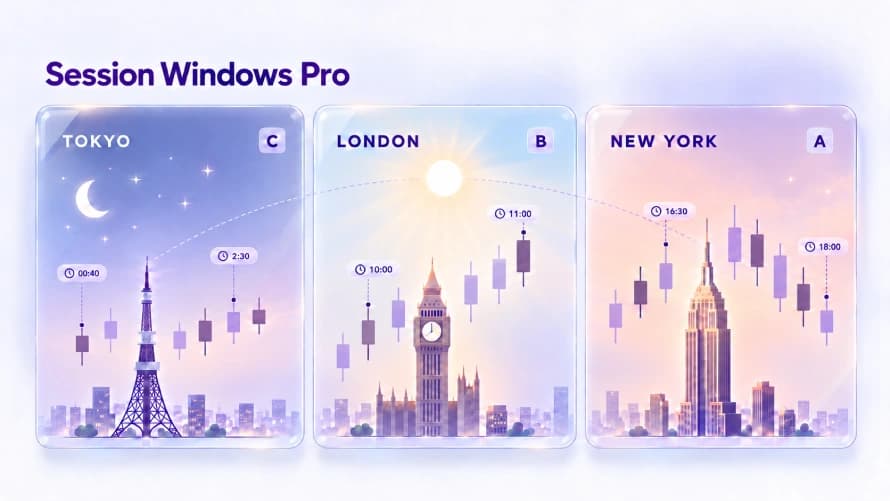
Advanced Session Time Windows – Session Windows Pro; Displays eleven time windows throughout the day and real-time status
Price behavior is not the same at different hours of the day. Session Windows Pro divides the day-night cycle into eleven colored, graded time ranges and, with a live panel, always shows you exactly where you are in the day.
Range Grading System in Session Windows Pro
Each range is pre-assigned one of three grades, A, B, or C — the higher the grade, the bolder the display. This grade can also be changed in the settings.
Grade A: Boldest; high priority
Grade B: Medium visibility; medium priority
Grade C: Lightest; low priority
Seven Display Modes of the Session Windows Pro Indicator
The indicator has seven predefined display modes. Each mode shows a specific portion of the complete 11-range map on the chart — from a simple overview to start with, to a full view for a comprehensive review of the course topics.
Three Main Sessions (Global View): The simplest view of the indicator, a suitable starting point for seeing the overall shape of the three main market sessions
New York Session Start: Separate display of the first part of the New York session
New York Session Midpoint: Separate display of the middle part of the New York session
New York Session End: Separate display of the final part of the New York session
London Session Start: Separate display of the first window of the London market open
Full Map — All Eleven Ranges: The most complete mode, with all ranges and their grades shown simultaneously on the chart
Time Points Only: Only key time-point lines, without drawing the range boxes
All ranges are set based on the broker's server time (GMT+3) mentioned; if there is a difference, use the time offset setting.
What Is Displayed in the Session Windows Pro Indicator, and How Is It Configurable?
Eleven colored time ranges
Each range is drawn with its own color and hour label — as filled, outline-only, or both.
Time points and boundaries
Key hours are marked with dotted lines, and the start of the day is marked with a line at 00:00 on the chart.
Live status panel
Shows which range you're currently in, its grade, and how many minutes remain until the next point.
Date range and offset
Number of days drawn, overall timing offset, and automatic hiding of days without candles.
Why Does the Session Windows Pro Indicator Help You Understand the Market Better?
A consistent reference across every symbol and chart — no manual calculation or range identification needed
Natural focus on Grade A ranges, instead of over-analyzing less important hours
Instant awareness of the next time point, with a countdown and live panel alert
Full alignment of ranges and grading with the concepts from the timing analysis video
Adjustable for any study style, with seven different display modes
How to Install the Session Windows Pro Indicator in MetaTrader 4 and 5
- Download the appropriate indicator file for MetaTrader 4 or MetaTrader 5.
- In MetaTrader, go to the File menu and select Open Data Folder.
- Depending on the version, enter the MQL4 or MQL5 folder, then the Indicators folder.
- Place the indicator file inside the Indicators folder.
- Restart MetaTrader, or click Refresh in the Navigator.
- Run the indicator from the Navigator onto the chart and select your desired settings.
This indicator is a tool for displaying and analyzing the market's time structure, and on its own does not constitute a buy or sell signal.
Comments & ratings
No ratings yet