

Menu
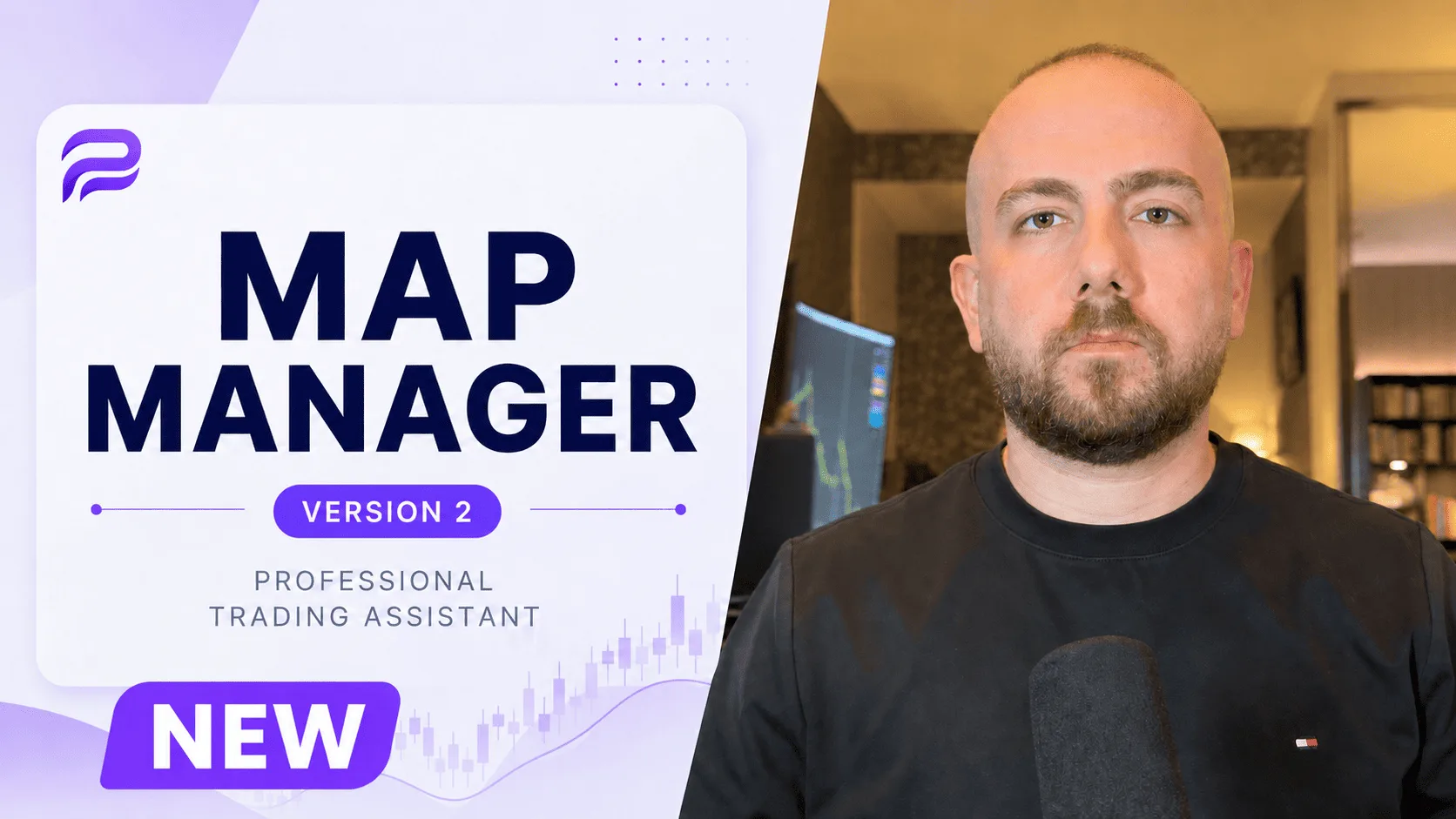
Capital management tool Map Manager
Capital management is the backbone of a durable trading system—where discipline and planning replace impulse and luck. The goal is not merely protecting principal; it is preserving mental calm so you can still decide correctly when the market moves.
That discipline is tested at the moment of entry—when price is moving and you must simultaneously calculate risk percent, stop-loss distance, and pip value to reach the right volume; exactly where manual calculation is slow and mistakes are costly.
The same place where most good capital-management plans remain only on paper.
Map Manager is built for that moment. It calculates and executes trade volume from the risk percent and stop-loss you set, and puts trade-management workflows—including risk-free, partial close, and pending-order management—on the same on-chart panel.
The result: the risk plan you wrote beforehand stays intact at the moment of execution.
Full introduction and training
Disclaimer
This tool is not an autonomous trading system and acts solely on the user’s direct input and commands. By downloading and using it, you accept that:
- All trading decisions are made entirely by you.
- The tool’s developer (poursamadi.com) bears no responsibility for loss, profit, missed opportunities, or any other consequence arising from use of this tool.
- The software is provided “as is” (as is), without any warranty or obligation.
- Use of this tool is entirely at your own risk.
- By continuing to use it, you accept full responsibility for all consequences and waive any legal claim against the developer.
Latest Map Manager release
Extract the archive and place it in the MQL4/Experts (or MQL5/Experts) folder, then fully close and reopen MetaTrader once.
2.0.0Version 2.0.0 changes
Changes in this version versus the previous one:
- Dedicated take-profit settings
- Trade history display management on the chart
- Three-part candle timer
- Automatic screenshot after each trading action
- Ability to change the tool font
- Font size and tool scale controls
- Pending-trade style changes and selectable colors
- Dollar risk amount shown on the Add Line
2.0.1Version 2.0.1 changes
Changes in this version versus 2.0.0:
- Separate MetaTrader 5 builds for broader system compatibility
- Noticeably adjustable tool size and width
- Selected tool position stays fixed and hidden state is preserved when changing timeframe
- Support for Cent accounts
- Updated trade screenshot naming standard
More about the MetaTrader 5 builds
For better compatibility across systems, the MT5 version is compiled in four variants:
Our suggestion: Start with the X64 Regular build. If it does not run correctly, check which of AVX, AVX2, or AVX512 runs best on your system.
Before using on a live account
Map Manager has been tested only on demo and live accounts of the broker introduced in the “Trusted broker” section. That does not mean it is incompatible with other brokers, but its behavior on them has not been reviewed.
If you use another broker, first run the tool on a demo account and fully verify volume calculation, opening and closing trades, and stop-loss behavior—then move to a live account.
View the tested brokerWarning
The risk limit applies only to trades opened directly with the tool. If you manually open a higher-risk trade through MetaTrader, the tool has no control over that trade.
MetaTrader install & troubleshooting guide
Check the following in order. Most installation, display, and trade-opening issues are resolved by these steps.
Restart MetaTrader
After placing the tool file in the Experts folder, fully close MetaTrader once. Then reopen the program and add the tool to a chart.
Enable automated trading
Before running the tool, enable Auto Trading in the tool settings. It must also be enabled from the main MetaTrader toolbar. In MetaTrader 5 it is called Algo Trading.
Tool not showing on the chart
If the tool isn’t displayed, check that the top-left option of the tool is set to Hide. Also close left-side MetaTrader windows, including Navigator.
If the problem persists, change the X and Y values in the settings; for example set both to 1.
Trade not opening
If the tool opens no trade, right-click the chart and check One Click Trading. Enable it and make sure a trade can be opened from that section.
Check risk value and balance
The risk value may have been entered incorrectly, or the account balance may be insufficient for the minimum volume. In that case lot size computes to zero and no trade opens.
Final note
If you have checked everything above and the problem still persists, the issue is likely related to your MetaTrader settings or broker.
Still stuck?
Send us your computer model and specs, a video or screenshots of the tool settings, and any other related documents. The more complete the documentation, the faster and more precise our reply.
support@poursamadi.comMap Manager PDF guide
Read the whole guide right here; it loads from the Iran server by default.
If the PDF does not render on this page, use “Open in a new tab” or switch to the other server.
Comments & ratings
No ratings yet